
How to Update a Poster Headline Without the Source File
You have a finished poster and need a different headline. The design still works, but the editable project file is missing. Your only copy is a JPG.
The first decision is whether you can recover the original design. An editable text layer gives you direct control over the wording, font, and spacing. A flattened JPG gives you pixels. Changing the words means rebuilding part of those pixels, so the result needs a closer check than a normal text edit.
This walkthrough uses a sample event poster to show what a small replacement looks like and where its limits remain. I maintain EditTextInImage, the tool used for the example.
Start with a change that fits the layout
The sample headline is Spring Market. The replacement is Autumn Market. Both are short phrases that can fit on one line in the left half of the poster. The flower photograph, supporting copy, and event information do not need to change.
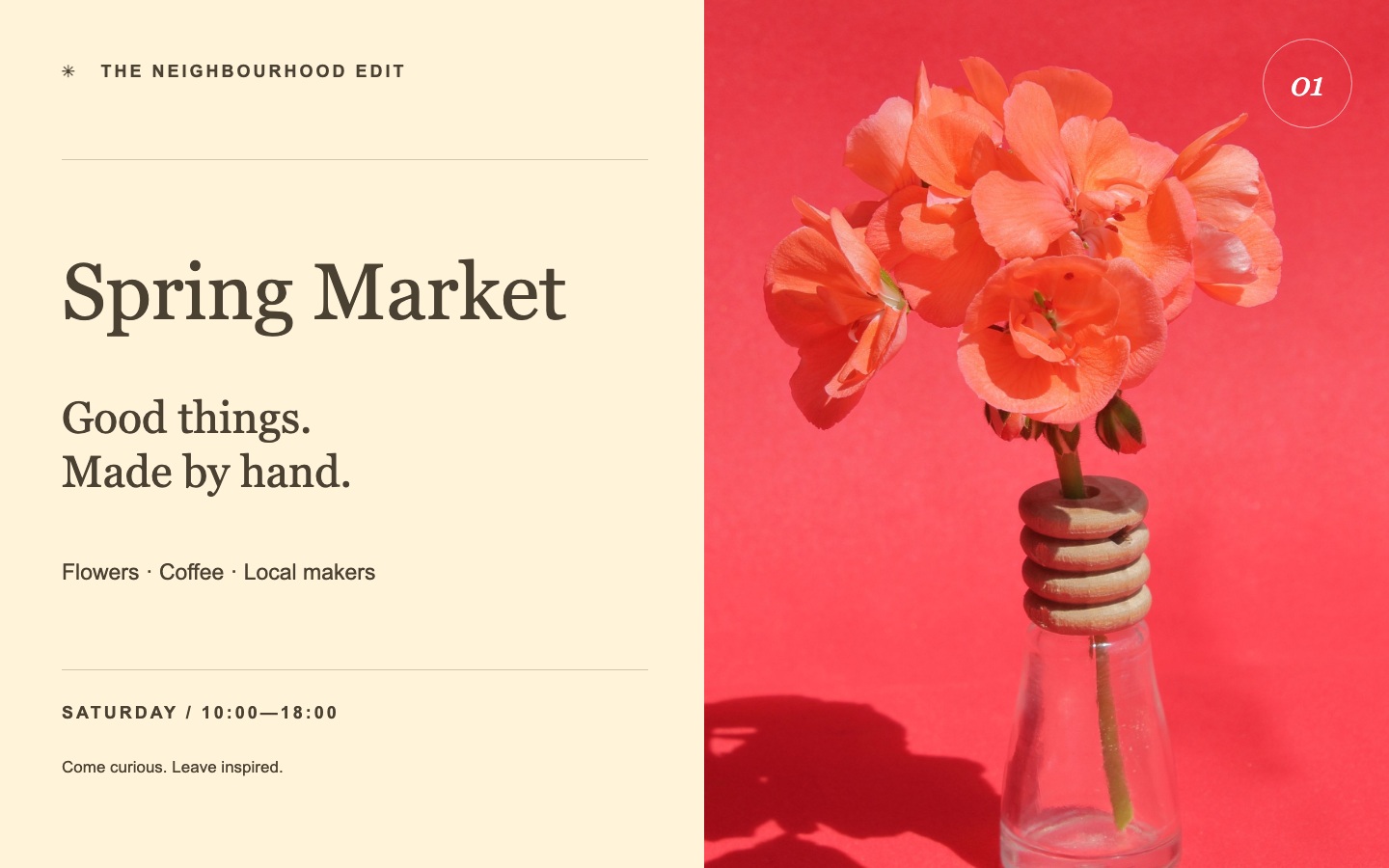
Before editing, check the space around the headline. A much longer replacement may wrap, overlap another element, or force smaller letters. If your new message changes the whole layout, rebuilding the design is often the more controllable approach.
A plain background is also easier to judge than text crossing faces, detailed photography, or decorative patterns. Even a cream background can reveal a faint patch after an edit, so it deserves inspection.
Select the complete headline
In a region-based editor, include the complete phrase in the selection, with a little room around the letter edges. Cutting through a letter can leave part of the old text behind. Selecting an unnecessarily large area gives the edit more surrounding artwork to reconstruct.
For this example, the selection covered the headline area. The original wording was entered as Spring Market, and the new wording as Autumn Market. Each generation edits one selected region. The edited crop is placed back into the original image; pixels outside that region are preserved by the compositing workflow.
That boundary matters. It tells you where to look for changes, but it does not guarantee that every pixel inside the selection will look the same.
Inspect the result at its original size
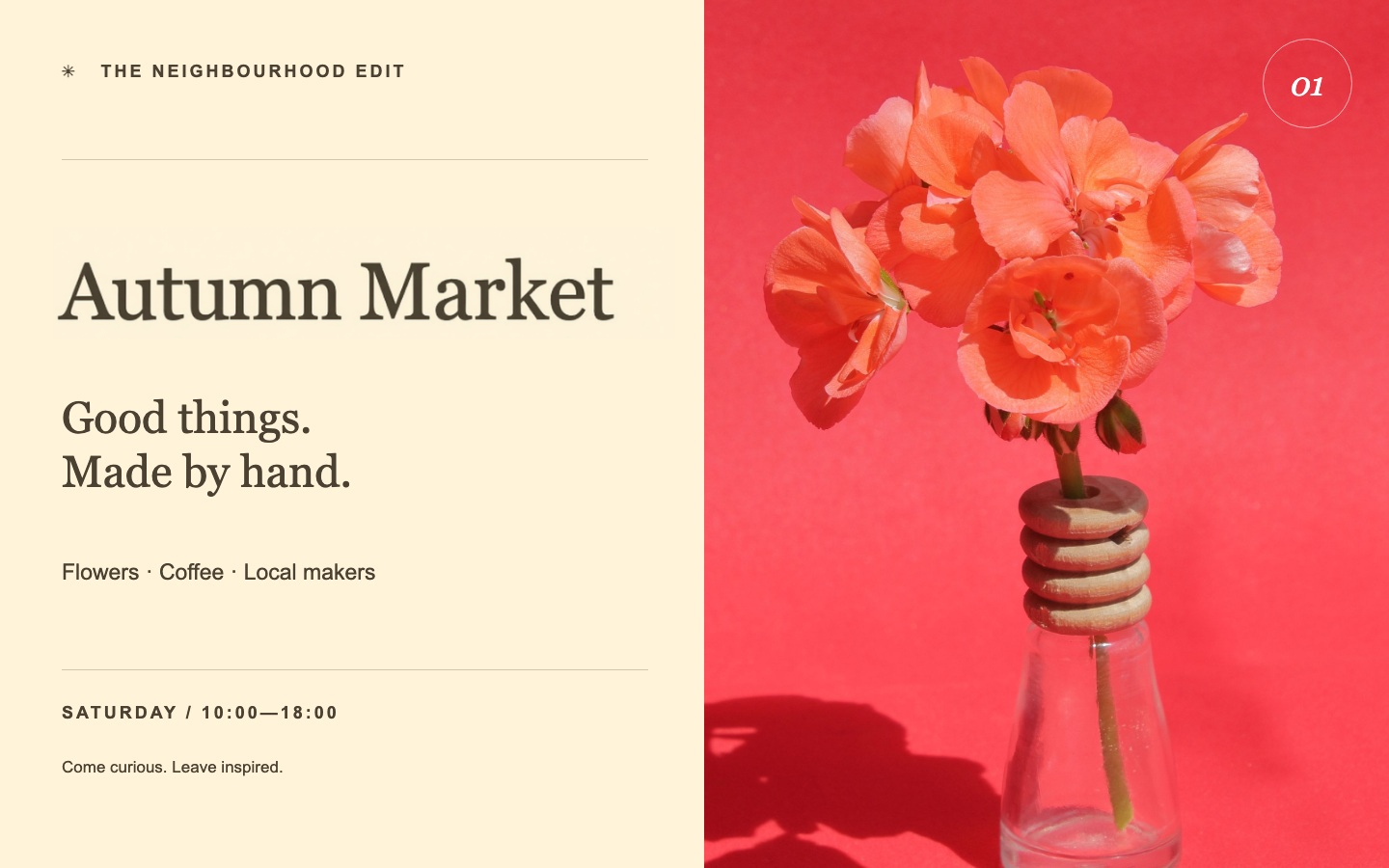
The saved output shows the replacement on one line in a similar serif style. It also has differences in letter weight, spacing, and the tone within the selected area. This is a documented example, not a guarantee of exact font reproduction on other images.
Check the actual exported file at 100% zoom. Read the entire phrase, including punctuation or accents if your replacement contains them. Compare the baseline and space between letters. Then look at the edges of the selection for changes in background color or texture.
Finally, view the whole poster at the size where people will see it. An edit can look acceptable in a close-up yet feel unbalanced in the full layout. A mobile preview alone may also hide small artifacts.
Choose an export for the next step
The tool exports a full-size PNG. Preserving the image dimensions avoids shrinking the poster during download, but it does not restore the original vector text or make it suitable for every print size. If the source image is too small for the intended use, a different export format will not recover the missing detail.
Keep both the original and the edited version. For another future change, start from the original rather than repeatedly editing an already reconstructed headline.
The example can be explored on the JPG text editor page. As of October 2, 2026, each account receives two editing credits once after sign-in, and credit purchases are closed. Check the current conditions before starting.
Photo credit: Mustafa Akın on Pexels. The photograph is incorporated into original sample artwork. The saved AI edit has not been manually retouched.